
How to Change the Default Search Engine in IE 10

Software Architecture, DevOps & System Design
In this article
- Discover why Internet Explorer 10 forces you to use Bing by default out of the box.
- Learn exactly what steps you need to take to change search engine ie 10 to alternatives like Google or Yahoo.
- Find out where to access the official add-on gallery for search providers when customizing your browser.
- Understand how to permanently set a new search provider to override the default settings.
- See how to manage and remove unwanted search add-ons through the browser's built-in settings menu.
The Bottom Line: To change the default search engine in IE 10, you must first add your preferred search provider from the official IE Gallery, as the built-in list is initially blank. Once added, you can set it as the default via the Manage add-ons settings menu, permanently replacing Bing.
The Search Engine Dilemma in IE 10
When I first booted up a fresh Windows machine running Internet Explorer 10, the very first thing I noticed was the search bar defaulting to Bing. While Bing is a capable engine, a lot of us have deep-rooted muscle memory for Google or specific needs for Yahoo and Wikipedia.
Unlike modern browsers that provide a simple dropdown menu to switch your default search provider, IE 10 handles this a bit differently. If you try to switch your engine natively, you'll quickly discover that there are no built-in options to quickly switch to any other search engine. The list of search providers is entirely blank except for the default browser-set search provider, Bing.
To successfully change search engine ie 10, you have to manually add your preferred engine from an online add-on gallery first. Here is the exact process I use whenever I need to configure a fresh IE 10 installation.
Step 1: Access the IE Search Add-on Gallery
Since the local list of search providers is empty, we must fetch them from Microsoft's repository.
- Open your Internet Explorer 10 browser.
- Navigate to the official IE Gallery.
(Note: The original URL for the gallery was
http://www.iegallery.com/en-US/addons?callback=true&featuretype=2. You can search for the "Internet Explorer Gallery Search Providers" to find the current active repository).
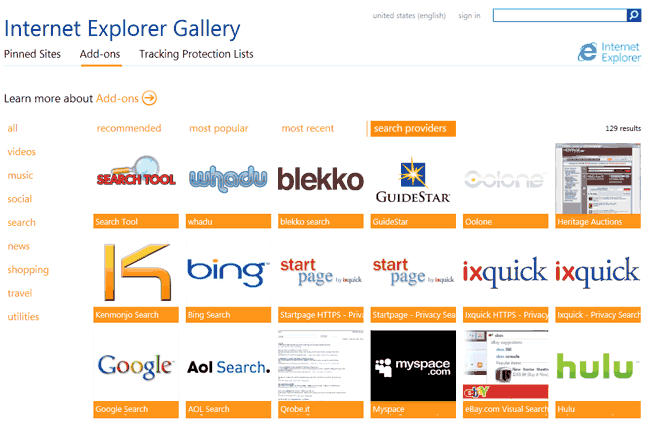
In my experience, you don't need to scroll endlessly. Most users just want one of the big names. Historically, popular items included: Amazon, AOL, eHow, Google, Wikipedia, Yahoo, and YouTube.
Step 2: Add Your Preferred Search Engine
Once you've located the search provider you want to use (for example, Google):
- Click on the add-on to open its dedicated page.
- Look for the Add to Internet Explorer button and click it.
Step 3: Set as Default
This is the most critical step to ensure your choice overrides Bing.
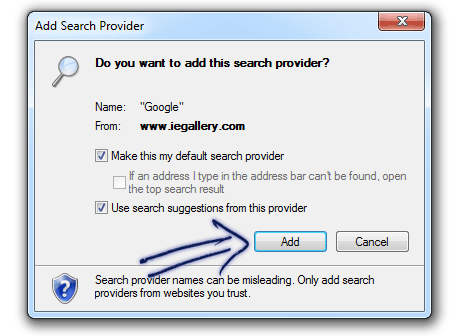
After clicking the add button, a confirmation dialog box will appear.
- In that dialog box, make sure to check the option that says Make this my default search provider.
- Click on the Add button to confirm.
Managing Your Search Add-ons
If you ever need to verify your changes or switch between multiple search engines you've installed, you can manage them locally:
- Click on the Settings gear icon in the top right corner of the browser.
- Navigate to Manage add-ons ⇒ Search Providers.
Here, you will see your newly added search engine in the list. When you click on any add-on in this list, various options will be displayed at the bottom of the window for customizing its behavior, such as preventing programs from suggesting changes to your default search provider.
By taking a few extra minutes to manually add these search providers, you regain full control over your browsing experience in IE 10.

Sandeep Kumar
Founder & Software Architect | Author of “The Operational State Control Plane”
Electronics engineer, software architect, and author of The Operational State Control Plane. Specializing in system design, distributed resilience, and building scalable tech solutions with real-world engineering insights.