
MailerLite UTM Tracking: How to Auto-Fill Hidden Fields Without Zapier

Software Architecture, DevOps & System Design
Marketing without data is just guessing. In this post, I break down the exact method I use to track lead sources (UTMs) inside MailerLite embedded forms. I’ll share the exact CSS to hide fields and the JavaScript snippets to auto-fill them, ensuring you know exactly which campaigns are driving your subscribers.
In this article
- Software engineers and technical marketers seeking granular campaign attribution for subscribers arriving on static landing pages.
- Definition and configuration of custom MailerLite subscriber text fields acting as dedicated persistence buckets for UTM tracking parameters.
- Real-time client-side query string extraction and automated form input injection during the browser's DOM lifecycle.
- Seamless deployment on edge-cached static sites without requiring backend servers, webhooks, or paid automation connectors like Zapier.
- Implementation using modern browser
URLSearchParamsand asynchronous form lifecycle handling to reliably capture visitor source data before submission.
The Bottom Line: Out of the box, MailerLite embedded forms cannot parse URL query parameters, reducing every incoming subscriber attribution to a generic "Webform" label. By defining custom subscriber text fields and injecting incoming UTM values directly into hidden form inputs via client-side JavaScript, you capture end-to-end campaign attribution without paying for third-party automation tools like Zapier. Because this parameter mapping executes entirely in the user's browser, your landing pages can stay completely static and cached at the CDN edge for sub-100ms global response times.
The Frustration of the "Black Box" Subscriber
If you are anything like me, you love data. When I write a deep-dive comparison, like my post on slashing Datadog infrastructure costs, and I see a spike in email subscribers, I want to know exactly where they came from.
Did they come from my Twitter thread? My newsletter swap? Or organic search?
Most email marketing platforms, including the one I use and love-MailerLite-give you basic analytics. But they often treat the "source" as simply "Webform." That’s useless. I don’t want to know they used a webform; I want to know they came from Campaign A versus Campaign B.
I spent hours scouring the web for a clean, end-to-end tutorial on how to pass UTM parameters (Urchin Tracking Modules) into MailerLite embedded forms. I found bits and pieces-some CSS here, a vague JavaScript snippet there-but nothing that connected the dots completely.
So, I built the solution myself. And today, I’m sharing the code.
What Are UTM Tags in MailerLite?
When I set up campaign tracking for my engineering deep dives, I naively assumed an email platform as mature as MailerLite would automatically ingest URL query parameters. I added ?utm_source=twitter&utm_campaign=launch to my links, watched new signups trickle in, and opened my subscriber dashboard—only to find every single record stamped with the exact same useless label: "Webform".
That was my wake-up call. To understand how to fix this, you first have to understand what UTM tags actually are in the context of MailerLite's architecture.
The Problem: MailerLite Has No Native URL-to-Form Ingestion
Urchin Tracking Module (UTM) parameters are five standardized query string tags—originally engineered by Urchin Software and later standardized by Google Analytics—used to identify the digital origin of inbound web traffic:
utm_source: The referring platform (e.g.,google,twitter,newsletter)utm_medium: The marketing channel (e.g.,cpc,social,email)utm_campaign: The specific campaign or promotion (e.g.,spring_sale,q4_saas_teardown)utm_term: The paid search keyword or audience clusterutm_content: The specific creative link or CTA clicked (e.g.,hero_cta,footer_link)
In heavyweight marketing suites like HubSpot or Marketo, client-side tracking scripts drop tracking cookies, automatically inspect URL parameters, and silently inject them into forms.
MailerLite does not do this. MailerLite’s standard embedded form script (universal.js) is strictly a form-rendering engine. It downloads the form markup, binds basic validation, and posts inputs back to MailerLite’s API. It completely ignores window.location.search. Unless you capture the query parameters yourself, MailerLite discards all inbound campaign context at submission time.
How UTM Tags Are Realized in MailerLite: Custom Subscriber Fields
Because MailerLite lacks built-in UTM parsing, UTM tags in MailerLite are realized as custom subscriber fields.
In MailerLite's subscriber schema, every subscriber has core default attributes like email, name, and status. You can extend this schema by creating custom fields configured with the Text data type:
utm_sourceutm_mediumutm_campaignutm_termutm_content
These custom fields serve as persistent database columns attached to the subscriber profile. When you add these fields to an embedded form in the MailerLite builder, the rendered HTML exposes them as named inputs:
<input type="text" name="fields[utm_source]" value="" />
<input type="text" name="fields[utm_medium]" value="" />
<input type="text" name="fields[utm_campaign]" value="" />
Once those inputs exist in the DOM, we can populate them dynamically before the visitor clicks submit. When the form submits, MailerLite serializes the fields[...] payload and permanently maps the attribution tags to that subscriber's record.
The Architectural Flow: From Query String to Subscriber Profile
In my architecture, I wanted an attribution pipeline that satisfied three strict engineering requirements:
- Zero dynamic server rendering: Landing pages must stay 100% static and aggressively cacheable at the CDN edge.
- Zero external middleware: No webhooks, Zapier tasks, or serverless functions that introduce latency and cost.
- Resilient execution: The parameter injection must reliably handle MailerLite’s asynchronous form loading.
Here is the exact lifecycle of how UTM data flows from the URL query string into MailerLite's database:
- Edge Cache Delivery: The visitor arrives via a tagged link. The CDN (e.g., Cloudflare) serves the cached static HTML instantly. Because query strings are stripped or ignored by edge cache keys for static assets, you preserve near-100% edge cache hit ratios.
- Asynchronous Form Injection: The browser downloads MailerLite’s
universal.jsasynchronously, rendering the form container and our custom UTM input elements. - Client-Side Parameter Resolution: Our custom
fillUTMParams()script parseswindow.location.searchusing the native browserURLSearchParamsAPI and writes the parameter values into the matching DOM inputs. - Payload Dispatch & Persistence: When the visitor submits the form, the browser transmits both user-entered data (
email) and auto-filled data (fields[utm_source]) to MailerLite’s API, where it is persisted to the subscriber's profile.
MailerLite UTM Fields Reference
To keep your tracking uniform across all forms and campaigns, configure your custom fields to mirror standard Google Analytics parameters:
| MailerLite Custom Field | Standard UTM Parameter | Purpose & Attribution Data Captured | Sample Values |
|---|---|---|---|
utm_source | utm_source | Identifies the referrer, platform, or search engine driving the traffic | twitter, google, newsletter-swap |
utm_medium | utm_medium | Identifies the marketing channel or delivery vehicle | cpc, organic, email, social |
utm_campaign | utm_campaign | Identifies the specific marketing initiative, promo, or launch | q4_saas_teardown, black_friday_2025 |
utm_term | utm_term | Tracks paid search keywords or targeted audience segments | distributed_systems, postgres_optimization |
utm_content | utm_content | Distinguishes between different links or CTAs leading to the same URL | hero_cta_button, sidebar_banner, variant_b |
Architectural Trade-offs and Edge Cases
While this client-side injection approach is lean and cost-free, there are three practical edge cases you must anticipate in production:
- Multi-Page Navigation vs. Direct Landing Pages:
Native
URLSearchParamsreads parameters from the current address bar. If a visitor lands onhttps://techvigil.com/?utm_source=twitter, browses to an article, and signs up on a secondary page, the query string is lost. If you need cross-page attribution across your entire blog, you will need to persist UTMs insessionStorageor a first-party cookie on initial landing and read from storage on form submission. For dedicated landing pages and direct lead funnels, direct URL extraction has zero overhead and zero dependencies. - Last-Touch Overwrite Semantics:
MailerLite uses a single subscriber profile per email address. If an existing subscriber rejoins your list from a Facebook ad after originally discovering you via organic search, MailerLite's default behavior updates their custom fields to the newest values. It acts strictly as a last-touch attribution system. If preserving first-touch attribution is critical for your funnel analysis, you should create separate custom fields (e.g.,
first_utm_source) and ensure your script only populates them if they are currently null. - Edge Caching vs. Dynamic Server Rendering: In server-rendered architectures (like dynamic WordPress or Next.js SSR), developers often populate hidden fields on the server. That approach destroys static edge caching because the server must execute per-request logic for every query string variation. Client-side injection moves the parsing to the browser, allowing your CDN to cache a single static HTML payload globally while still capturing granular, visitor-specific attribution.
Why Should You Care About UTMs?
Before we dive into the code, let’s talk about the why.
According to a report by McKinsey, companies that make decisions based on data are 23 times more likely to acquire customers compared to those that don't (Source: McKinsey & Company).
If you aren't tracking UTMs, you are flying blind. UTMs allow you to tag your URLs with specific information.
utm_source: Where is the traffic coming from? (e.g.,google,newsletter)utm_medium: How did they get here? (e.g.,cpc,banner,email)utm_campaign: What was the specific promotion? (e.g.,black_friday_2024)
By capturing this data in your email list, you can segment your audience later. Imagine sending a "Thank You" email specifically to people who subscribed via a Facebook Ad. That is the power of tracking. (Capturing tracking parameters directly in the browser also means your landing page HTML can remain fully static and cacheable at the edge—see my deep dive on caching ad landing pages on Cloudflare's free plan without breaking campaign attribution.)
Watch the video walkthrough on YouTube
Step 1: Prepare Your MailerLite Dashboard
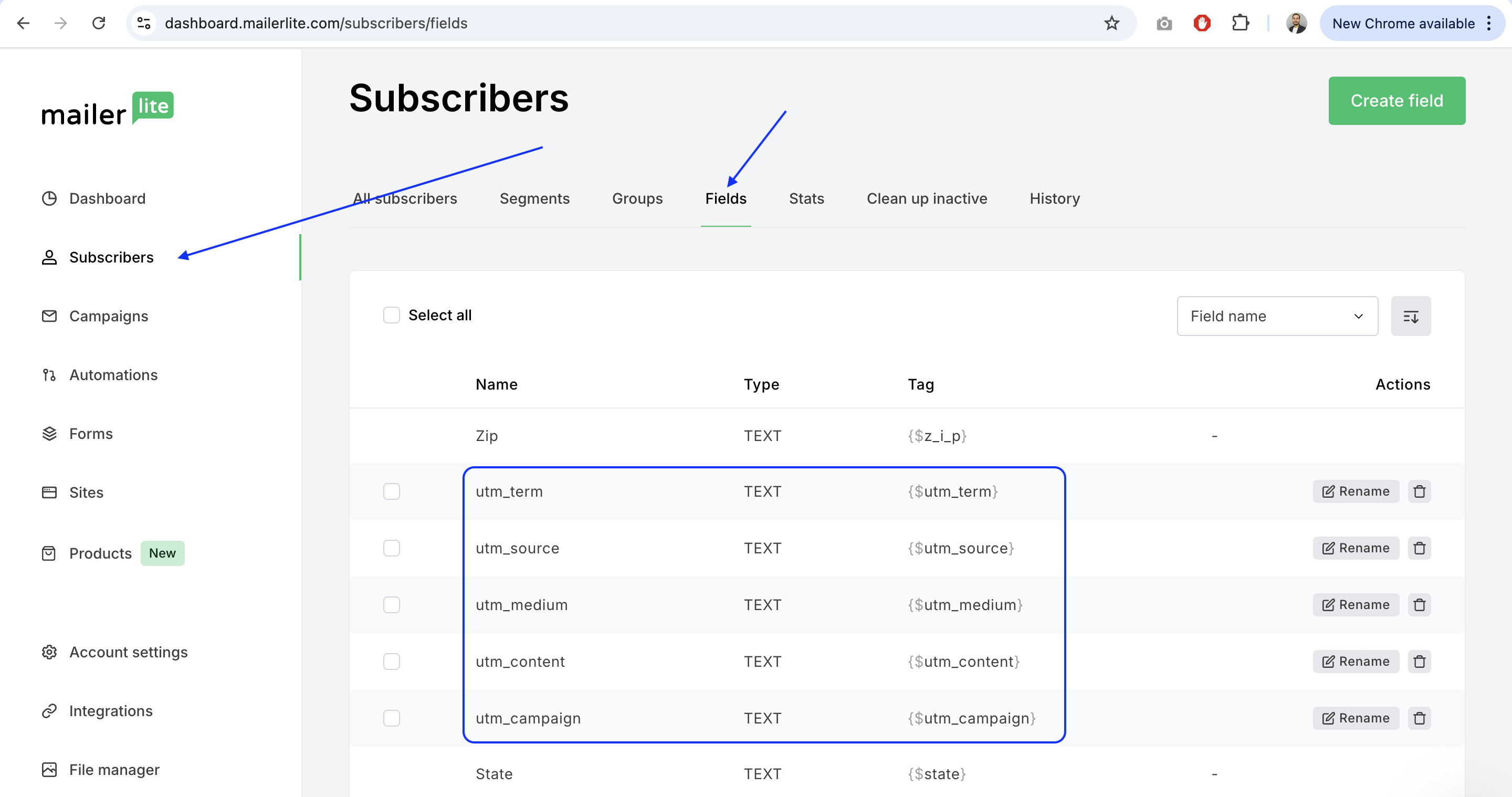
First, we need to tell MailerLite that we plan to store this extra data. By default, MailerLite only cares about Name and Email. We need to create "buckets" for our UTM data.
- Log in to your MailerLite Dashboard.
- Navigate to the Subscribers main menu.
- Click on the Fields tab.
- Click Create Field.
You need to create a text field for every parameter you want to track. I recommend creating all five standard Google Analytics parameters:
utm_sourceutm_campaignutm_mediumutm_contentutm_term
Note: Keep the data type as "Text". Once you hit save, these fields exist in your database, ready to receive data.
Step 2: Add Fields to Your Form
Now, go to the Forms section in MailerLite and open the embedded form you are using on your website.
You need to add the fields you just created into the form builder. Yes, I know what you’re thinking: "But I don't want my users to have to type in 'utm_source'!"
Don't worry. We are adding them now so they exist in the HTML structure. We will hide them in the next step.
- Click Add field.
- Select the custom fields you created (
utm_source, etc.). - Save and Publish your form.
At this point, if you were to embed the form, it would look terrible. It would ask the user for their Name, Email, and five weird technical questions. Let’s fix that.
Step 3: The Magic of CSS (Hiding the Mechanics)
We need to make these fields invisible to the human eye but still available for the browser to interact with. We will use CSS to set their display property to none.
When you grab the HTML embed code from MailerLite to put on your site, you’ll need to add a style block to hide them.
What this does: It tells the browser, "Render the form, but visually remove these five specific input boxes from the layout." The inputs are still there in the code-waiting for data-but your visitor only sees "Name" and "Email."
Step 4: The JavaScript Logic (Auto-Filling the Data)
Now for the fun part. We need a script that looks at the URL in the browser address bar, grabs the confusing tracking code (e.g., ?utm_source=twitter), and stuffs it into those hidden form fields.
We are going to define a function called fillUTMParams.
Here is the clean, modern JavaScript approach to do this. You can place this in a <script> tag on your page:
function fillUTMParams() {
    // 1. Get the query parameters from the current URL
    const urlParams = new URLSearchParams(window.location.search);

    // 2. Define the list of fields we want to look for
    const hiddenFields = ['utm_source', 'utm_campaign', 'utm_medium', 'utm_content', 'utm_term'];

    // 3. Loop through them and fill the form inputs if data exists
    hiddenFields.forEach(field => {
        const value = urlParams.get(field);
        if (value) {
            // Find the input field with the corresponding name attribute
            const input = document.querySelector(`input[name="fields[${field}]"]`);
            if (input) {
                input.value = value;
                console.log(`Auto-filled ${field} with: ${value}`); // Optional: for debugging
            }
        }
    });
}
This script creates a URLSearchParams object (a native browser feature) that makes parsing URLs incredibly easy. It loops through our list, checks if the URL has data for that item, and if so, injects it into the input.value.
Step 5: The "Gotcha" (Timing is Everything)
This is the part where most tutorials fail, and where I got stuck for a long time.
MailerLite forms usually load via a "Universal JavaScript" snippet. This script loads asynchronously. This means your webpage might load your custom fillUTMParams function before the MailerLite form has actually finished rendering on the screen.
If your script tries to find input[name="utm_source"] before the form exists, it returns null and nothing happens.
To fix this, we need to tweak the MailerLite embed code to trigger our function only after the form has loaded. We will use window.setTimeout as a safety buffer inside the script's onload event.
Here is the modified Universal Script you should use (replace the account ID with yours):
(function(w, d, e, u, f, l, n) {
    w[f] = w[f] || function() {
        (w[f].q = w[f].q || []).push(arguments);
    },
    l = d.createElement(e),
    l.async = 1,
    l.src = u,

    // THE IMPORTANT PART: Wait 2 seconds (2000ms) after load to run our fill function
    l.onload = window.setTimeout(fillUTMParams, 2000),

    n = d.getElementsByTagName(e)[0],
    n.parentNode.insertBefore(l, n);
})
(window, document, 'script', 'https://assets.mailerlite.com/js/universal.js', 'ml');

ml('account', '123456780'); // <-- REPLACE THIS WITH YOUR ACCOUNT ID
Why the 2000ms delay? The onload event signifies that the script file has downloaded, but MailerLite might still take a moment to inject the actual HTML form into your page. Giving it a 2-second buffer (2000 milliseconds) ensures the inputs exist in the DOM before we try to fill them.
Testing Your Setup
You’ve added the fields, the CSS, and the tweaked JS. Now, does it actually work?
- Open your browser in Incognito/Private mode.
- Paste your blog post URL and append some fake parameters:
https://techvigil.com/your-post/?utm_source=testsource&utm_campaign=testcampaign - Right-click on your form and select Inspect.
- Look for the hidden input fields in the HTML.
- If you see
value="testsource"inside theinputtag, congratulations! It works.
Now, when you submit that form, check your MailerLite subscriber list. You should see "testsource" populated in the utm_source column.
This is massive for organizing your data. You can now distinguish which specific tweet or Reddit comment drove the most signups.
Frequently Asked Questions (FAQ)
Can I use this method with other email providers like ConvertKit or MailChimp?
Absolutely. The logic is identical. You create the fields in your provider, add them to the form, hide them with CSS, and use the exact same fillUTMParams function. You just need to make sure the input[name="..."] selectors match what your provider generates.
Why use setTimeout? Isn't there a cleaner way?
In a perfect world, MailerLite would provide a "callback" function that runs immediately after the form renders. However, documentation on that is sparse. The setTimeout method is a robust, "brute force" way to ensure the form is ready without writing complex observers. It’s simple and it works.
Will this slow down my website?
Not at all. The script is incredibly lightweight, and because the MailerLite script is async (asynchronous), it doesn't block the rest of your page content from loading.
What happens if a user visits without UTM parameters?
The script checks if (value) before trying to fill anything. If the visitor comes directly to your site (no UTMs in the URL), the hidden fields simply remain empty. Your form submission will still work perfectly; those fields will just be blank in your database.

Sandeep Kumar
Founder & Software Architect | Author of “The Operational State Control Plane”
Electronics engineer, software architect, and author of The Operational State Control Plane. Specializing in system design, distributed resilience, and building scalable tech solutions with real-world engineering insights.